
Converge requires all consultants and associates to keep accurate and timely records of appointment outcomes. It is expected that you are marking appointments as completed, cancelled or marked as no show on the same day as the appointment was scheduled for, or at the latest by the end of month.
Completing an appointment involves providing the appointment notes and indicating the appointment outcomes - once this has been completed, the appointment is added to the end of month RCTI (invoice) summary. Marking an appointment as completed takes approximately 2-4 minutes.
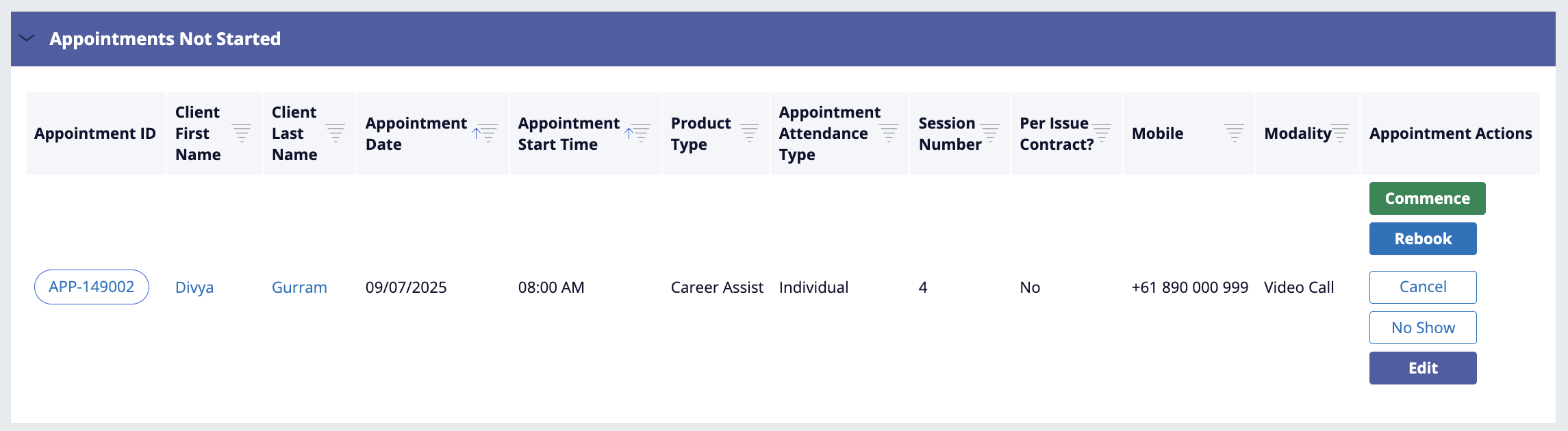
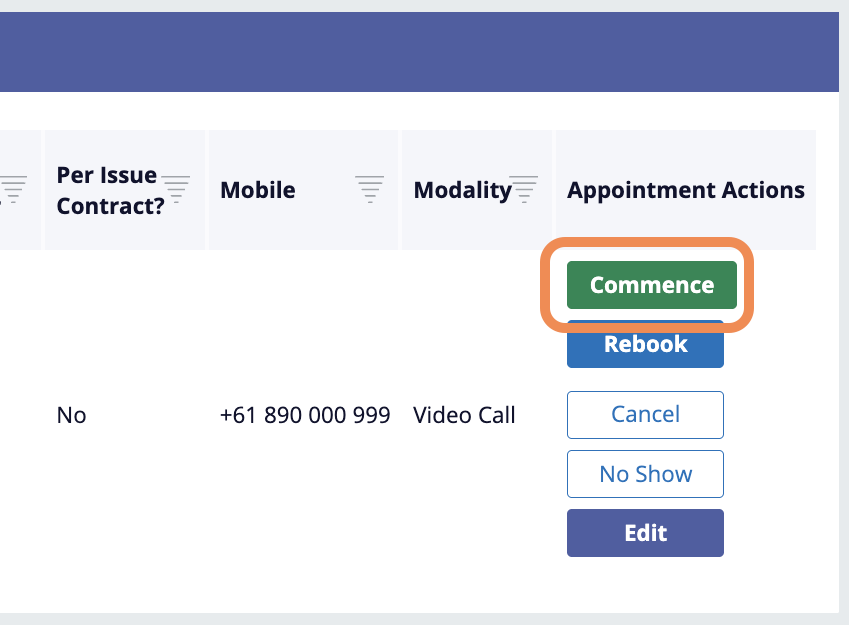
Access the appointment in Phoenix
|
Page / Section |
Instructions |
Screenshot of step |
|---|---|---|
|
Quick View page |
If you can’t find the appointment, search for it using the filter tool |
|
|
|
|
|
Reported issues & outcomes (note taking page) |
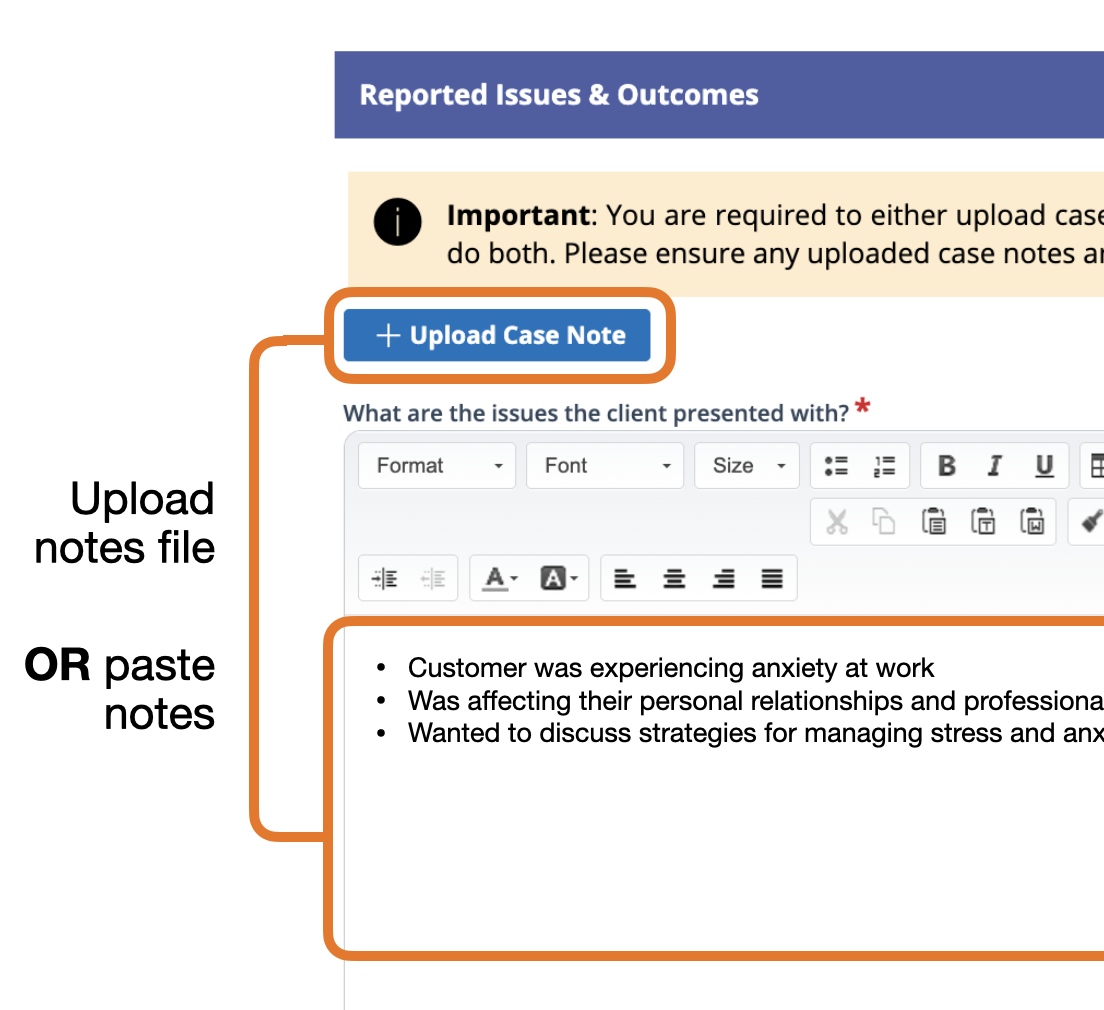
Upload a saved file of the notes (Word or PDF) using the Upload case note button OR if you’ve typed the notes elsewhere, paste them in the text fields. Providing notes are mandatory. View more information here. |
|
|

|
|
|
Client observed issues page (multiple choice questionnaire) |
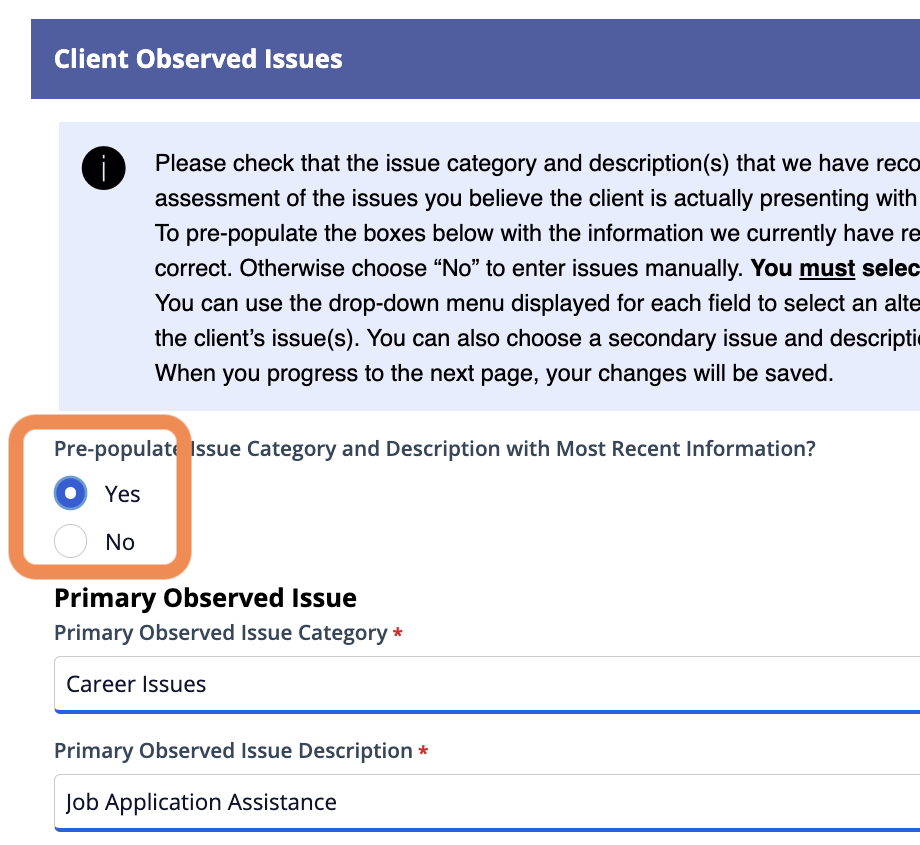
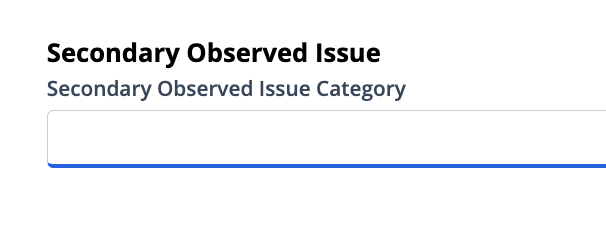
Clicking Yes will pre-fill the “Primary observed issue category” & the “Primary observed issue description” fields |
|
|
|
|
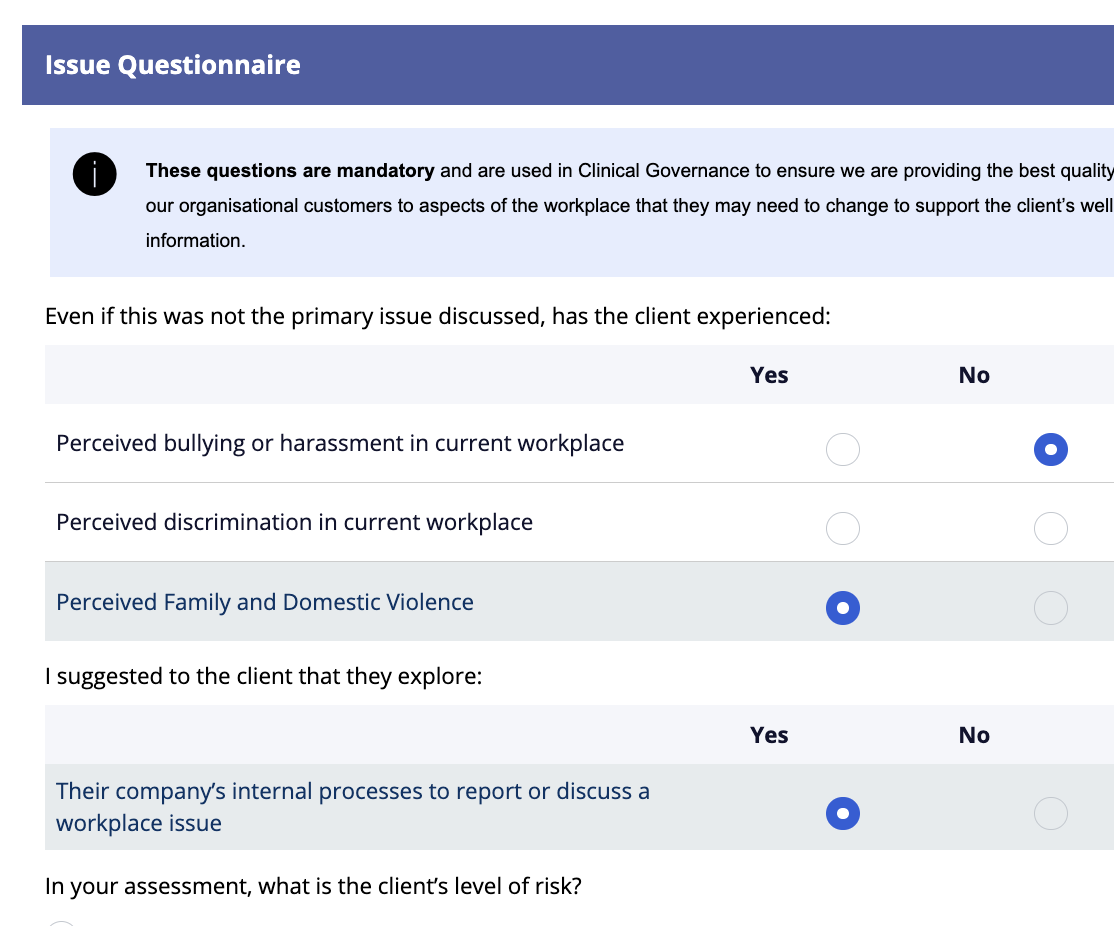
There are 12 questions to complete. These questions will be pre-filled for 2nd and subsequent sessions. |
|
|
|
|
|
|
|
When you click Consultant sign off, the appointment will be closed and all information will be permanently saved to the customers' health record and cannot be amended. |
|